Clear PhilGEPS cookies in Chrome
Use these steps when an official PhilGEPS opportunity opens its generic error page. This removes only PhilGEPS site data; it does not delete your GepScout account or subscription.
- 01
Find the PhilGEPS source
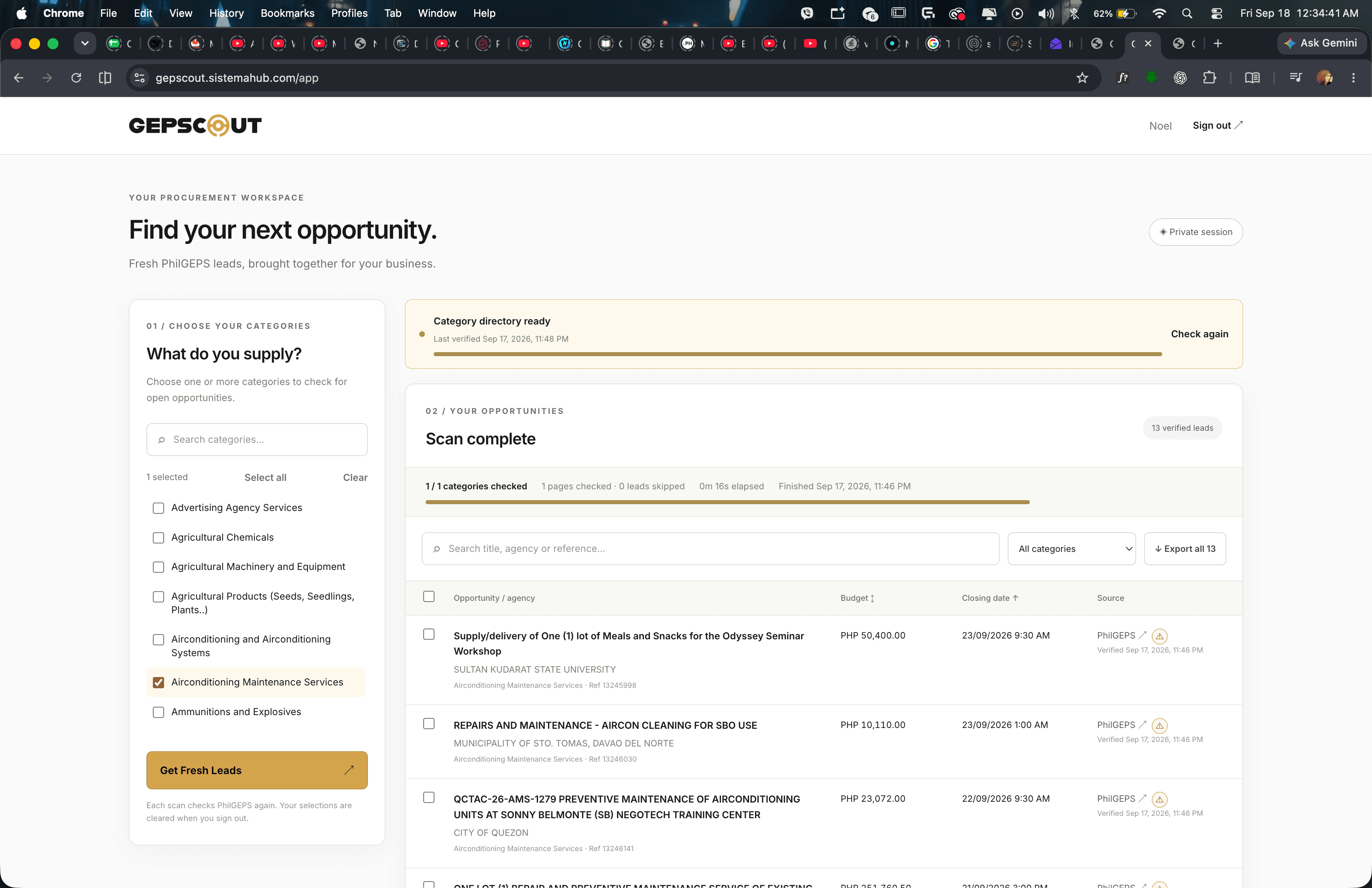
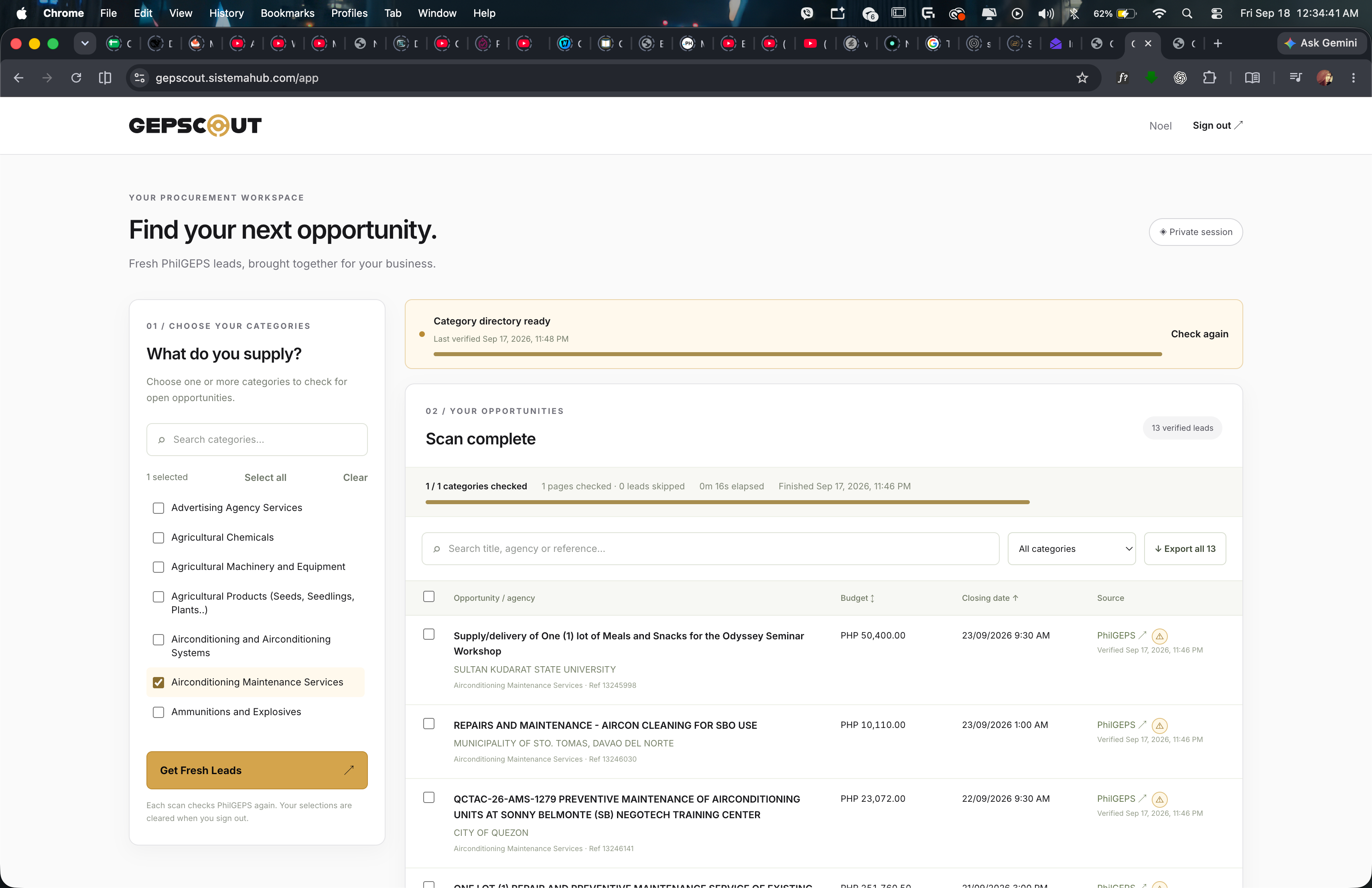
In your GepScout results, locate the PhilGEPS source link and its warning icon.
- 02
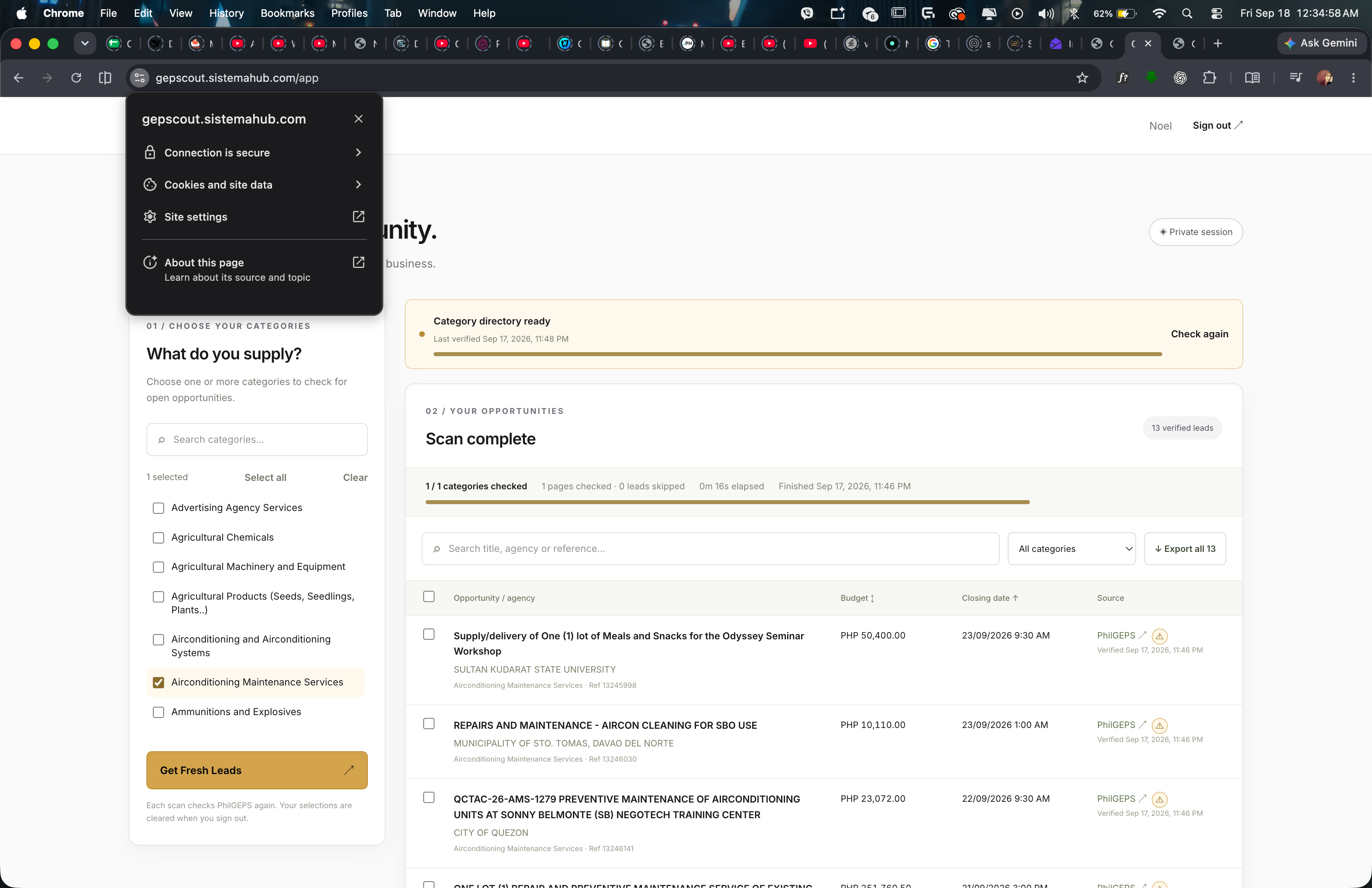
Open Chrome site controls
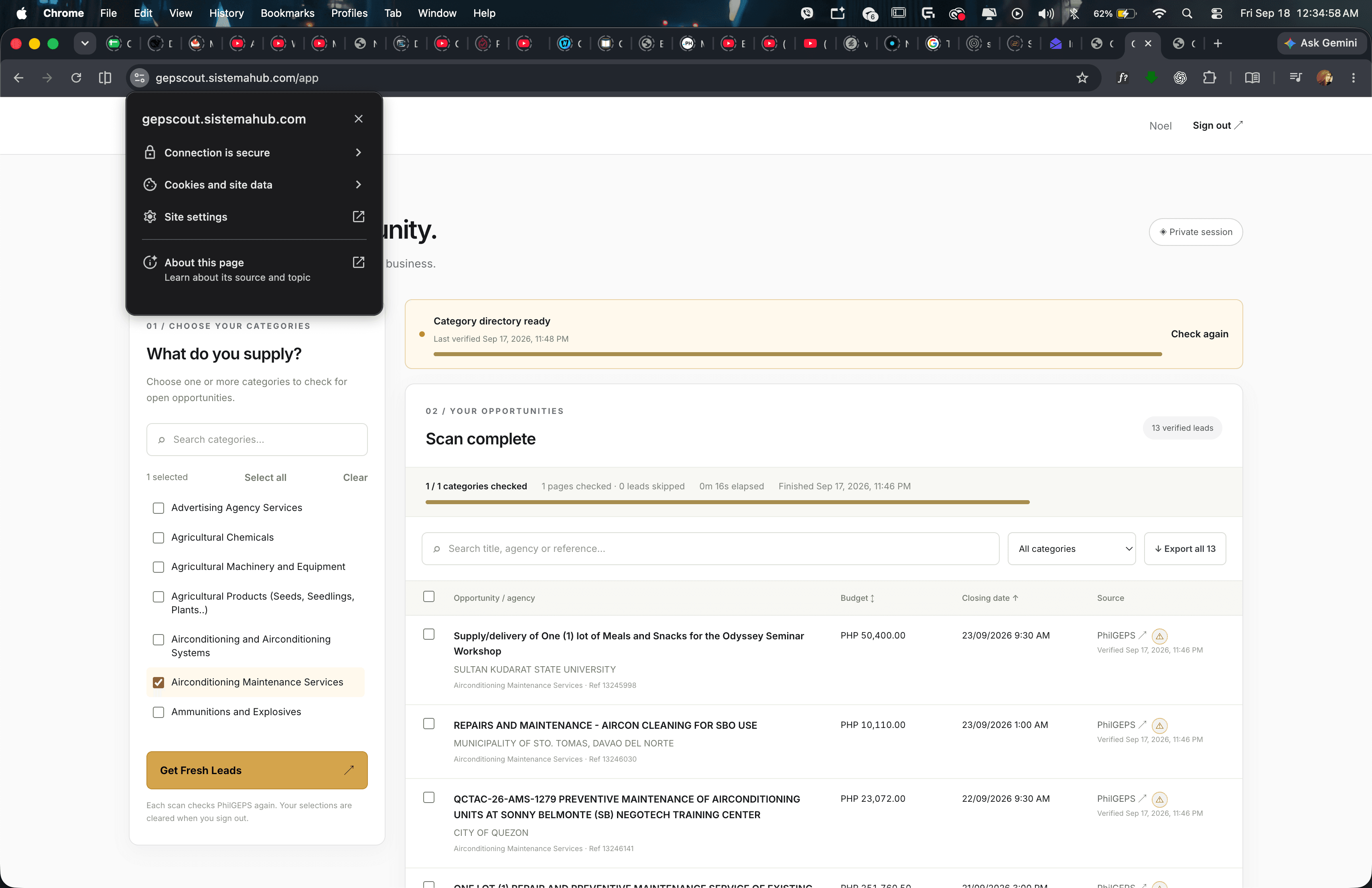
Select the site-controls icon on the left side of Chrome’s address bar.
- 03
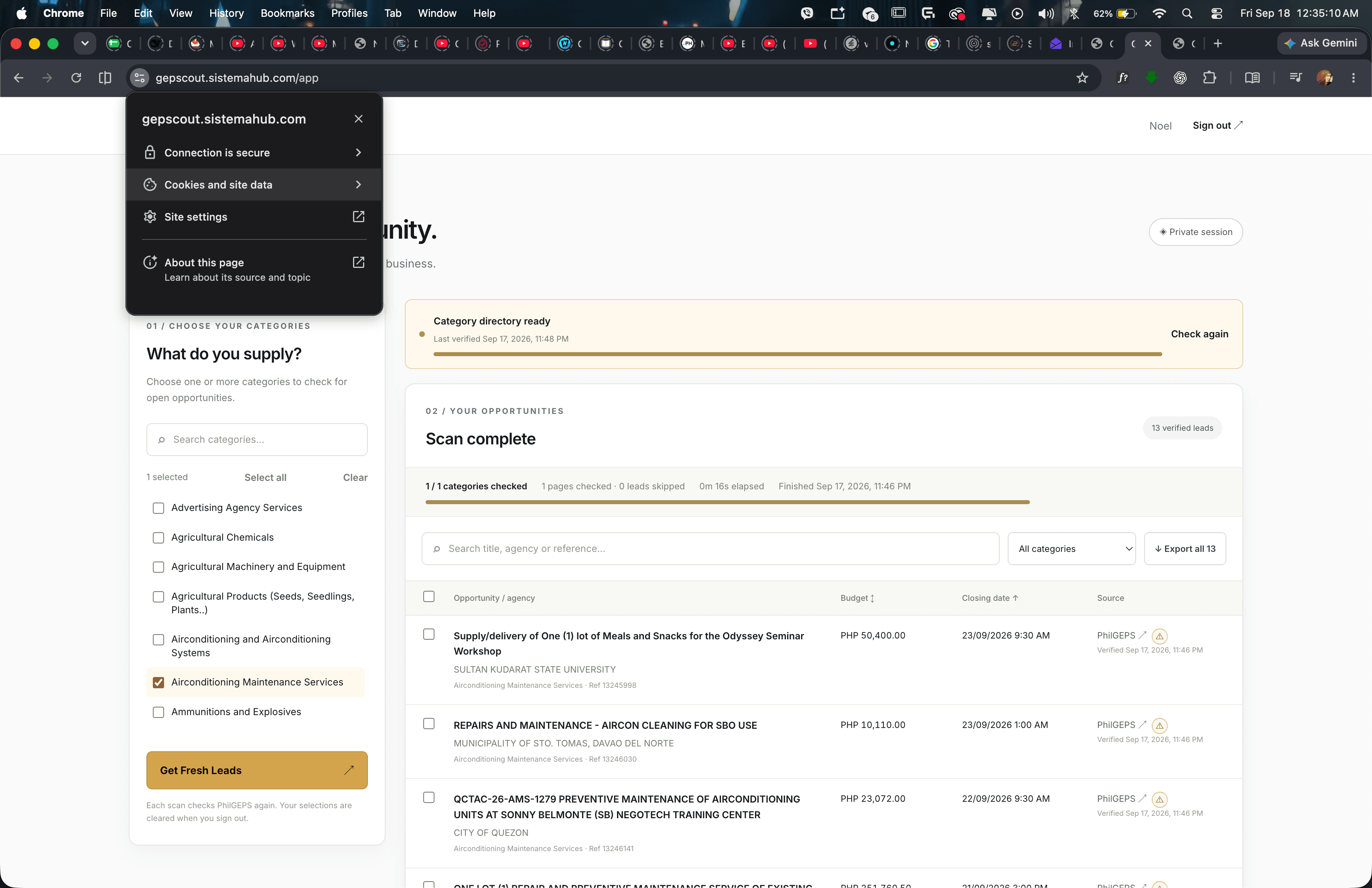
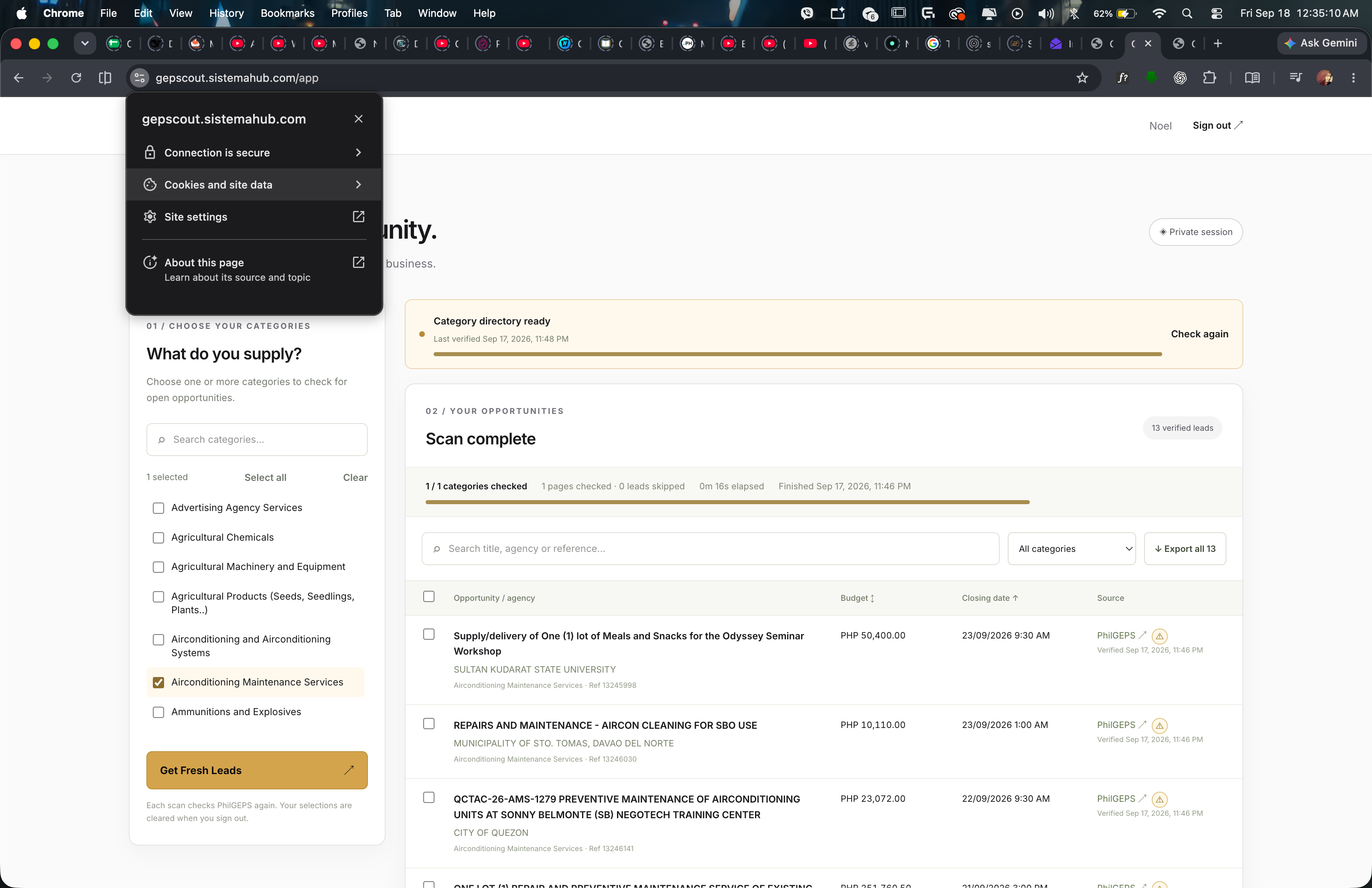
Choose Cookies and site data
Select “Cookies and site data” from the site-controls menu.
- 04
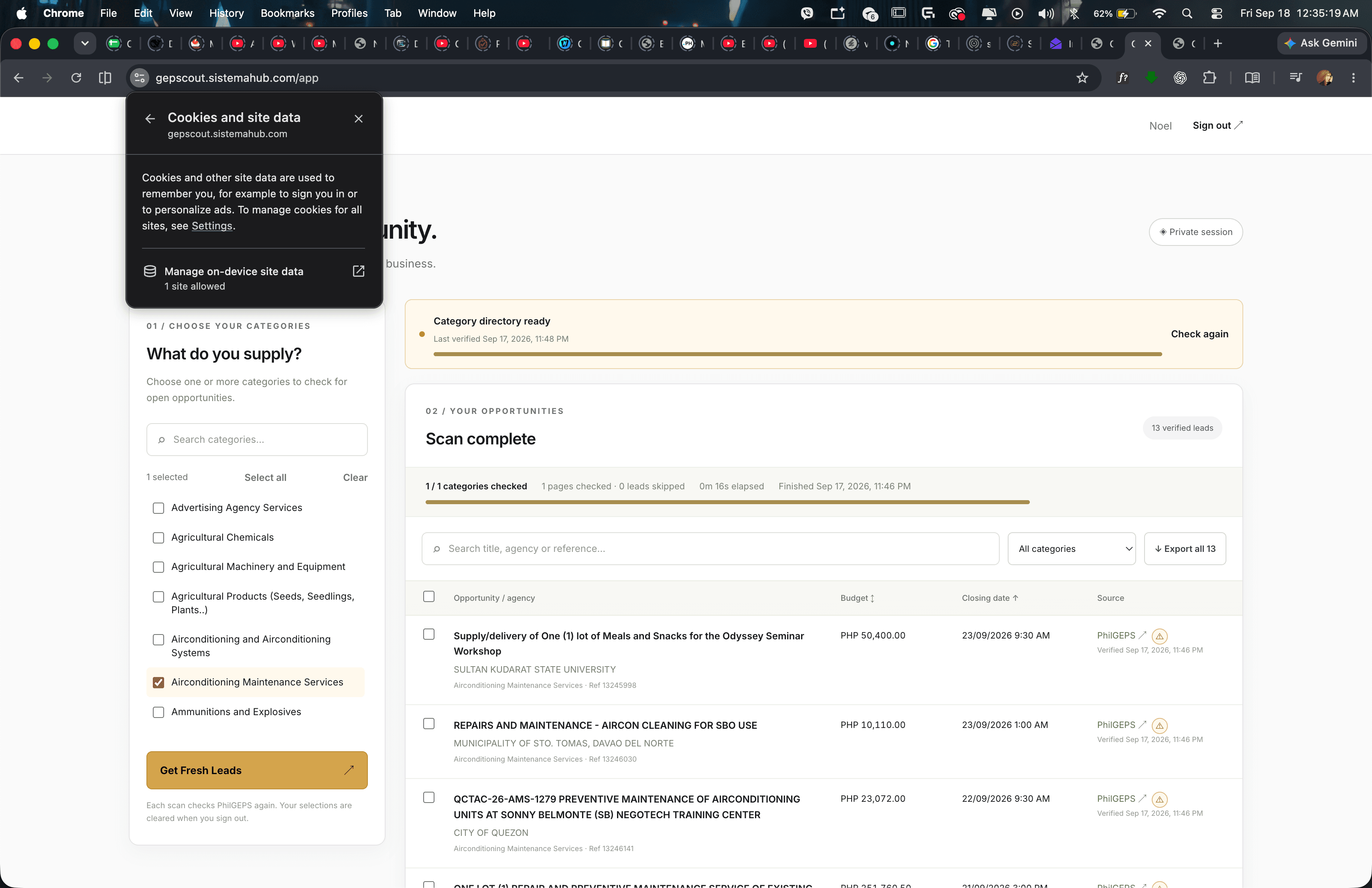
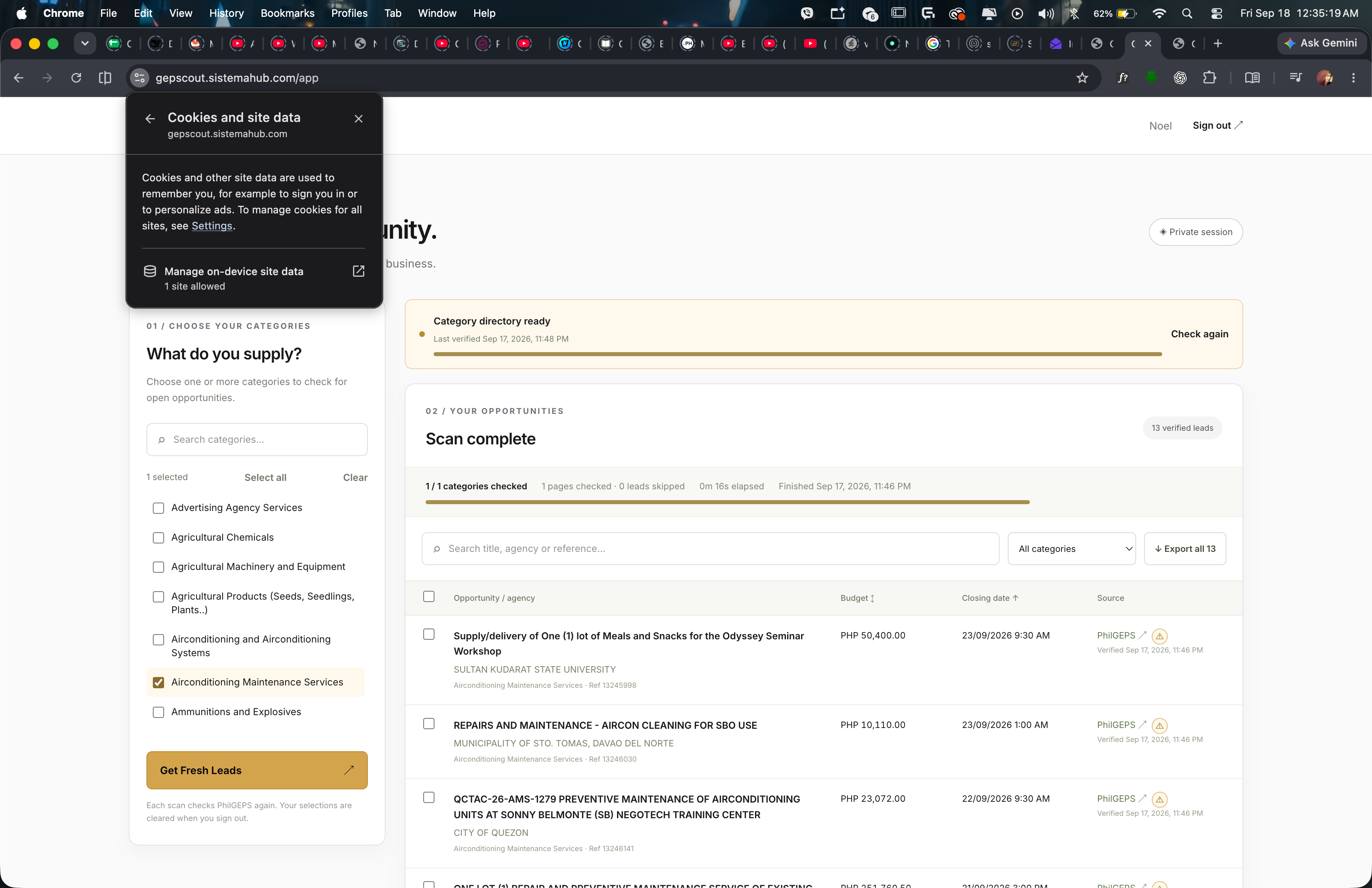
Manage on-device site data
Select “Manage on-device site data” to open Chrome’s stored site-data settings.
- 05
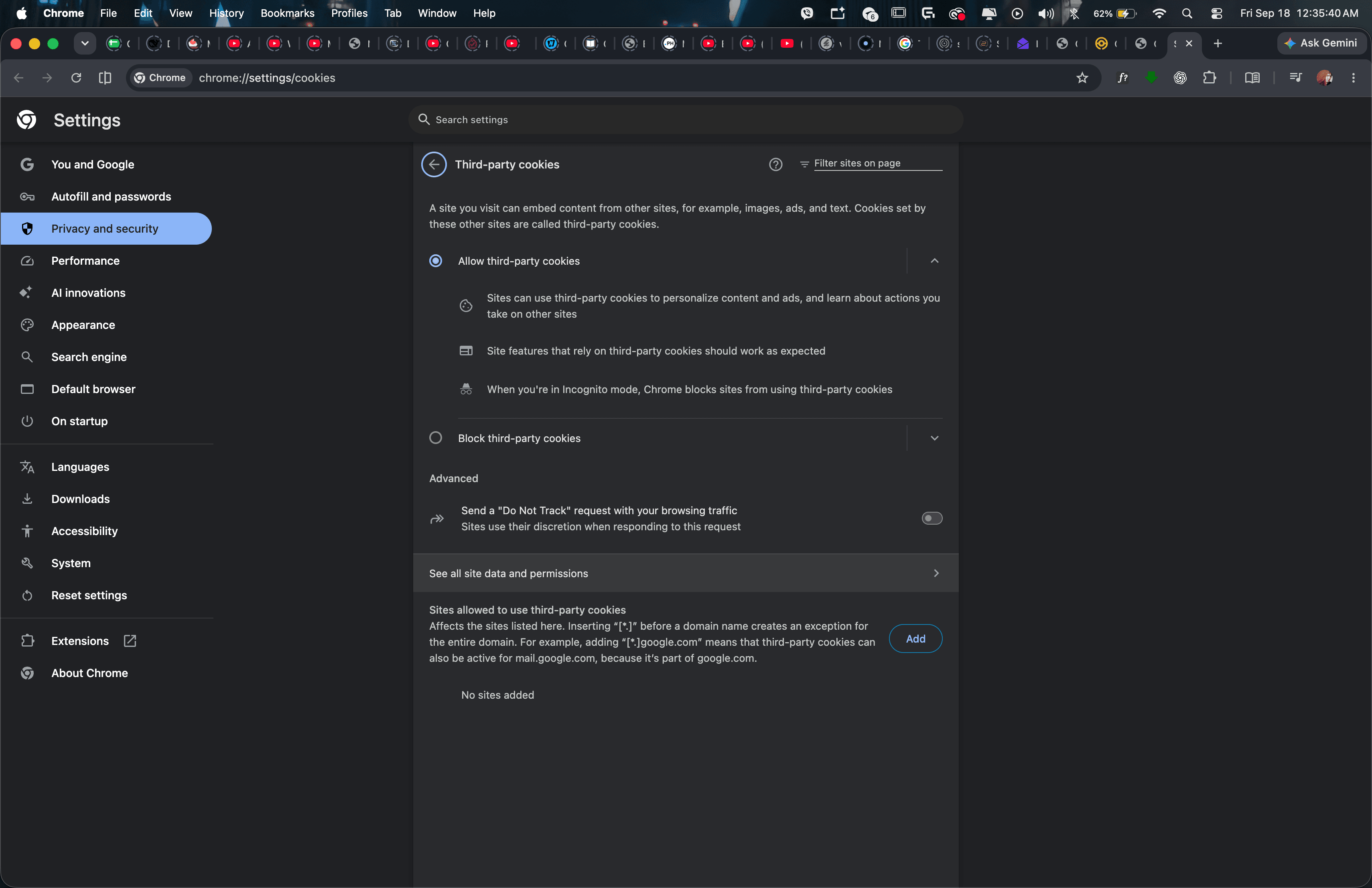
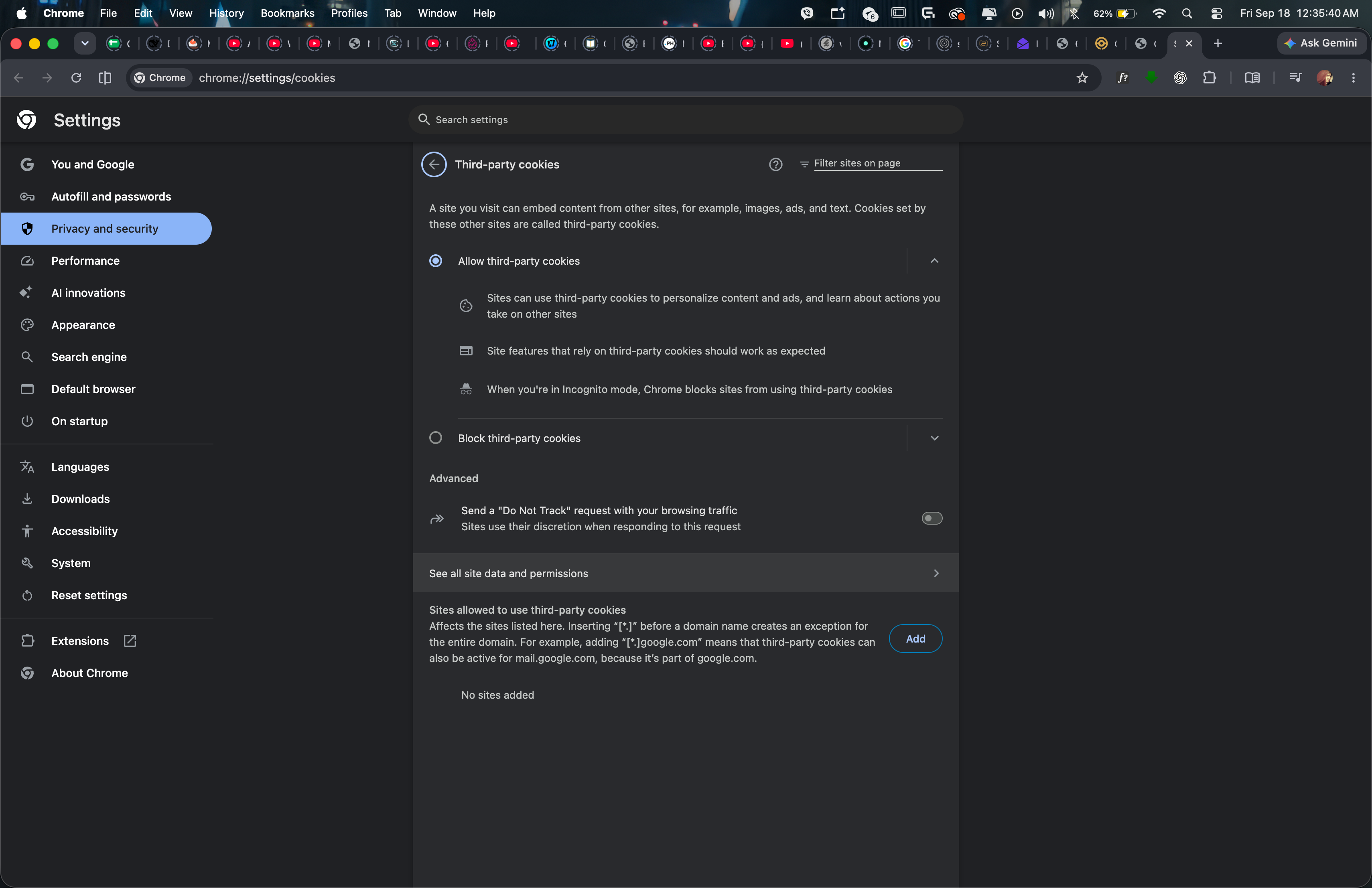
Open all site data
Under Third-party cookies, select “See all site data and permissions.”
- 06
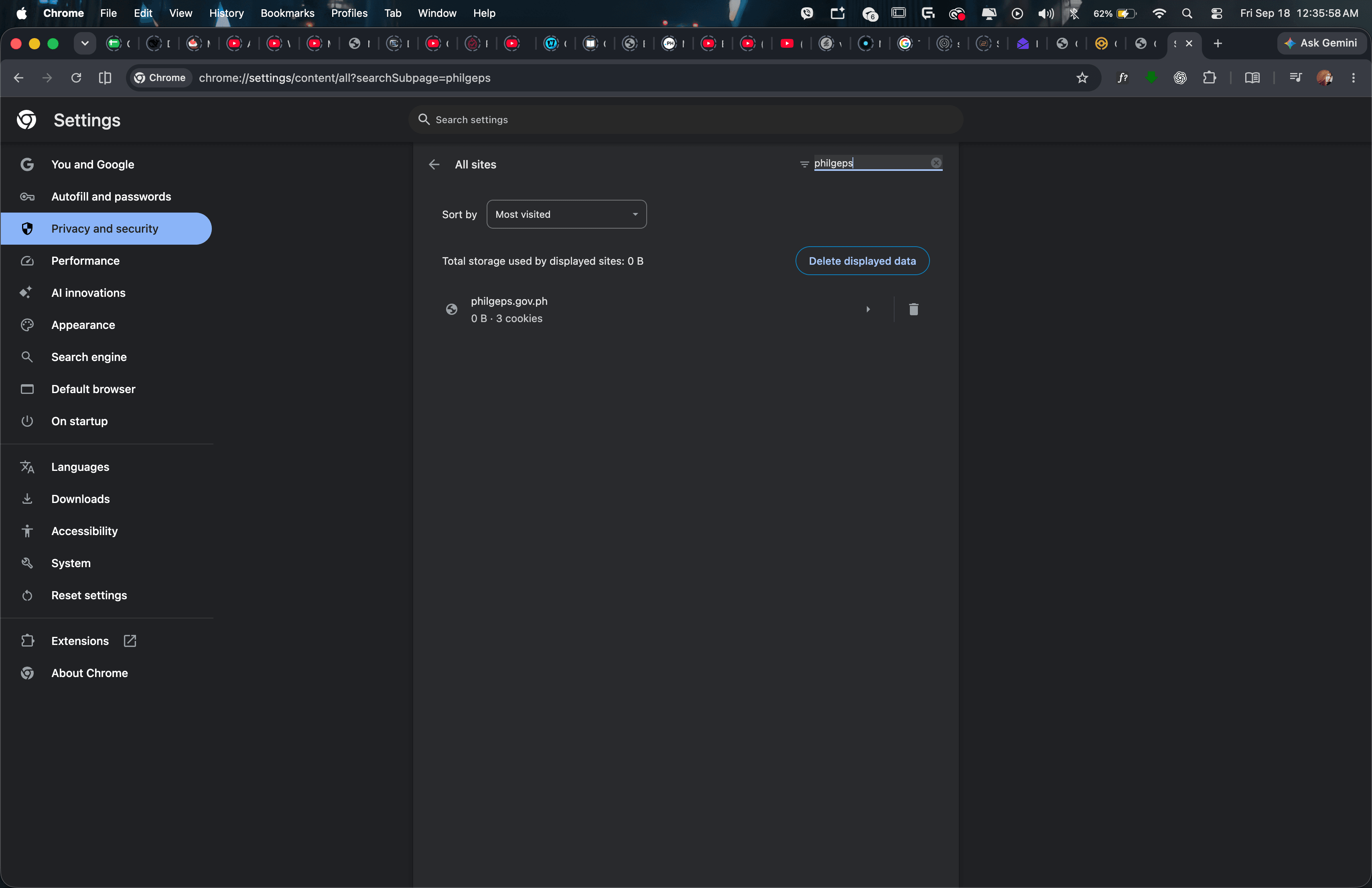
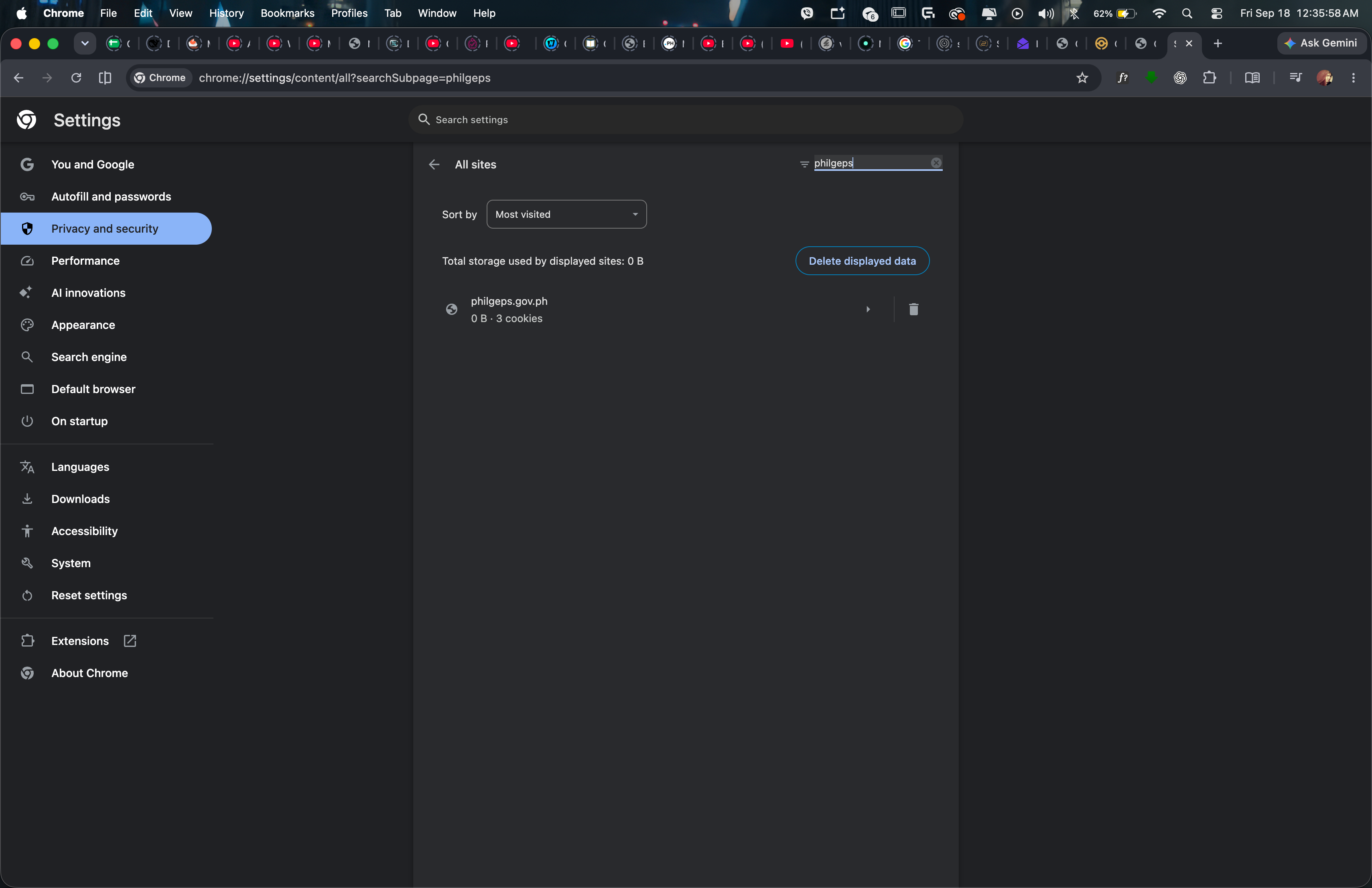
Search for PhilGEPS
Search for “philgeps” and confirm that philgeps.gov.ph appears in the results.
- 07
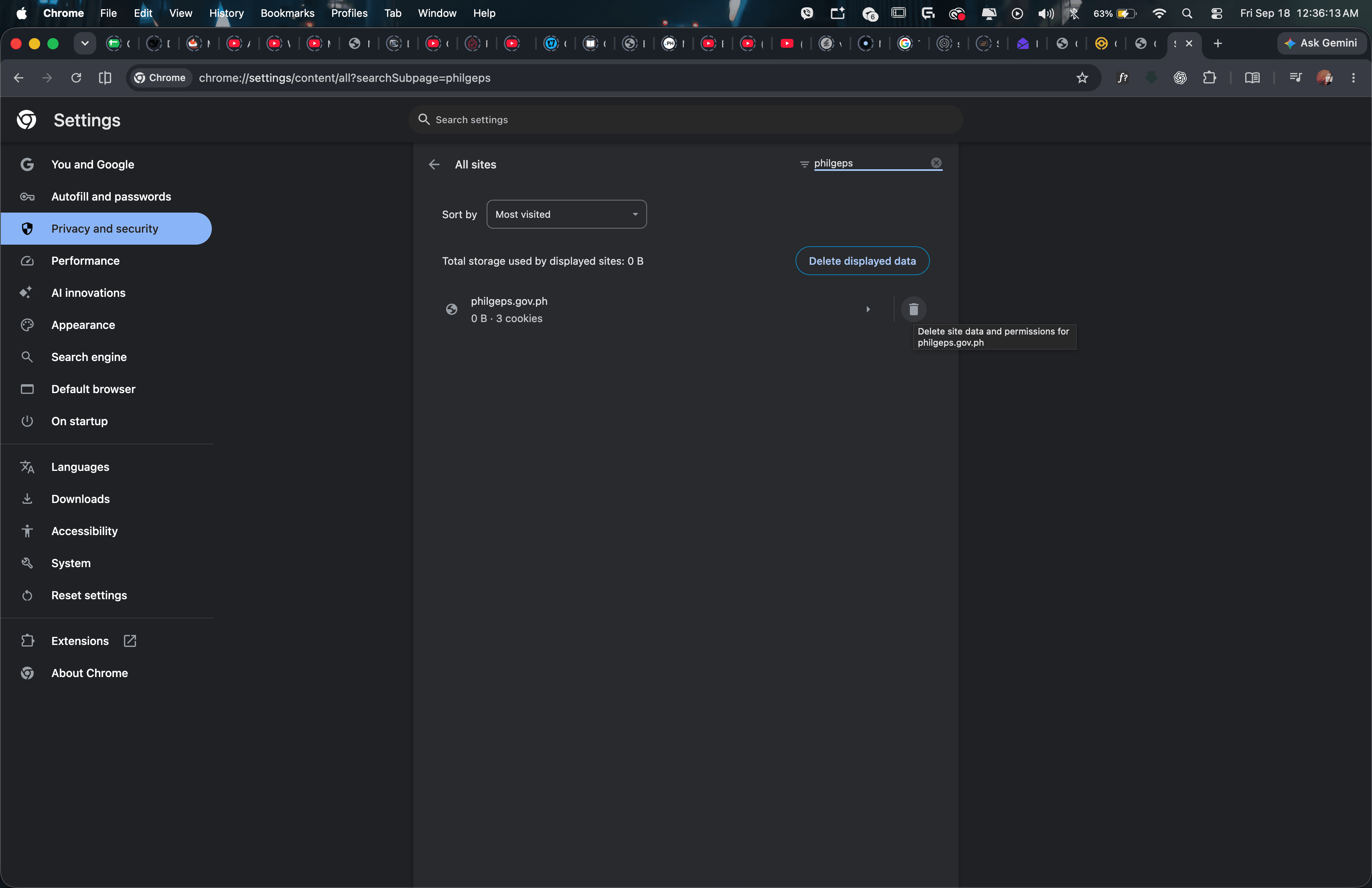
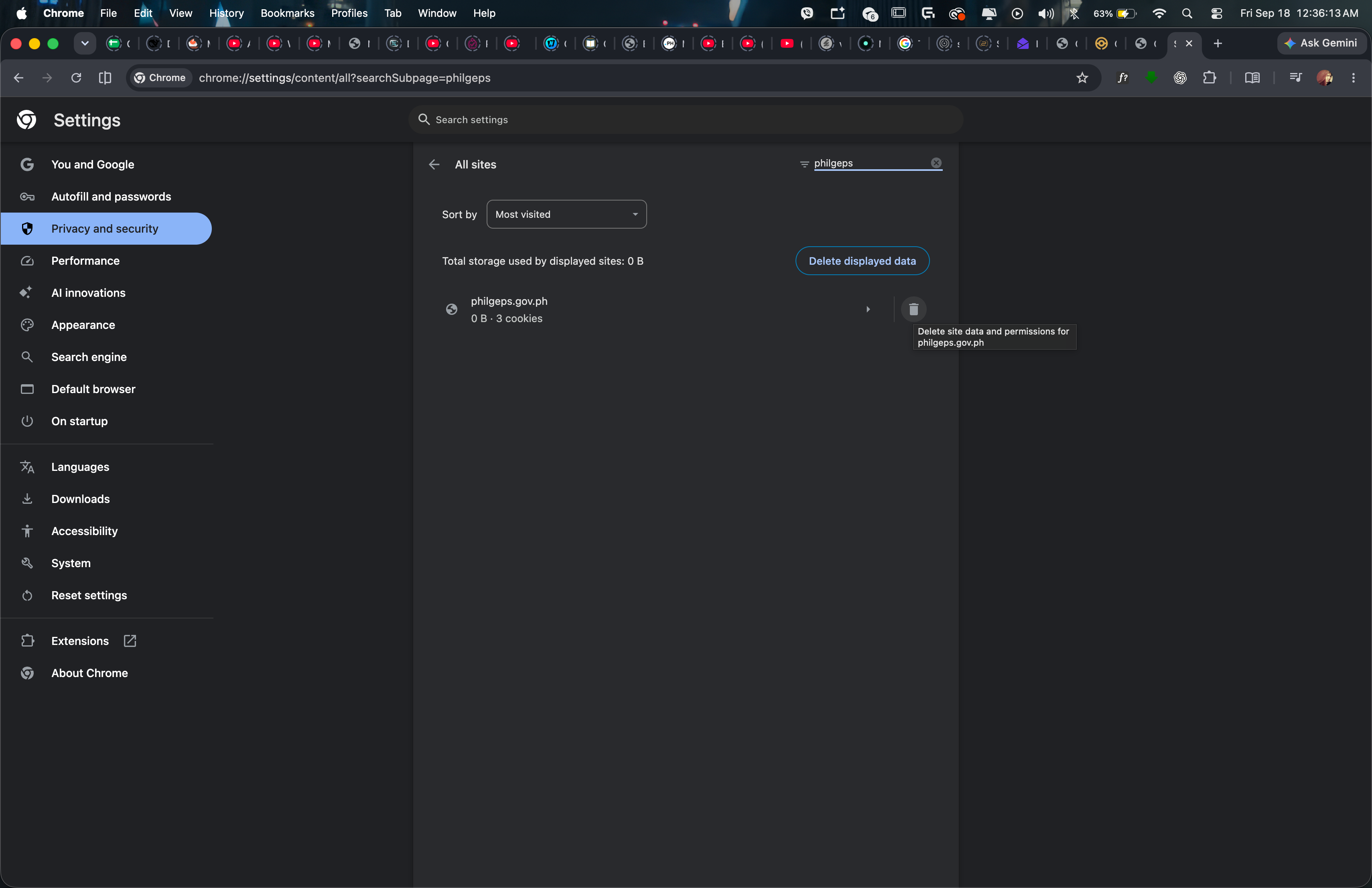
Delete the PhilGEPS data
Select the trash icon beside philgeps.gov.ph. Do not delete GepScout site data.
- 08
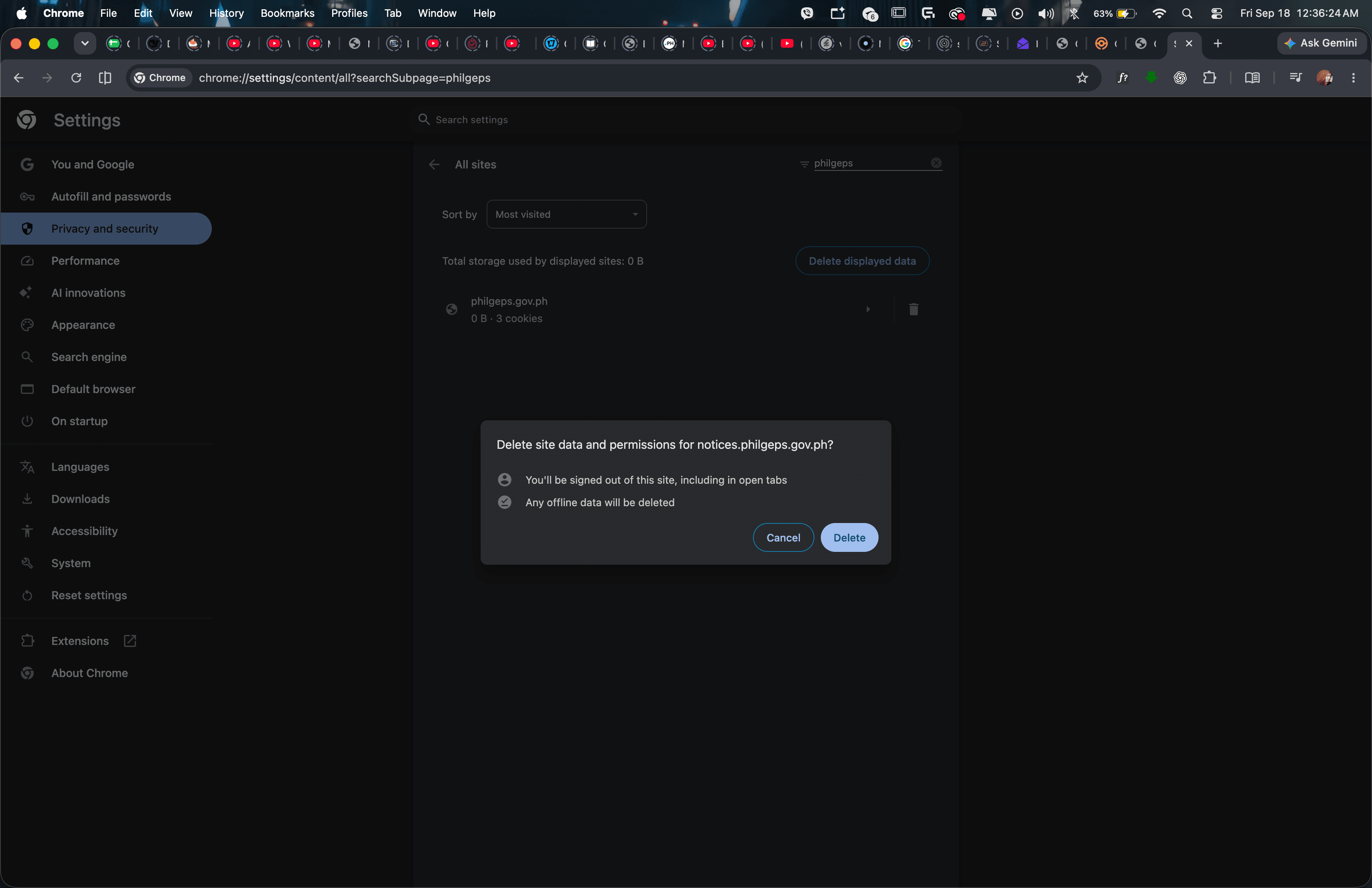
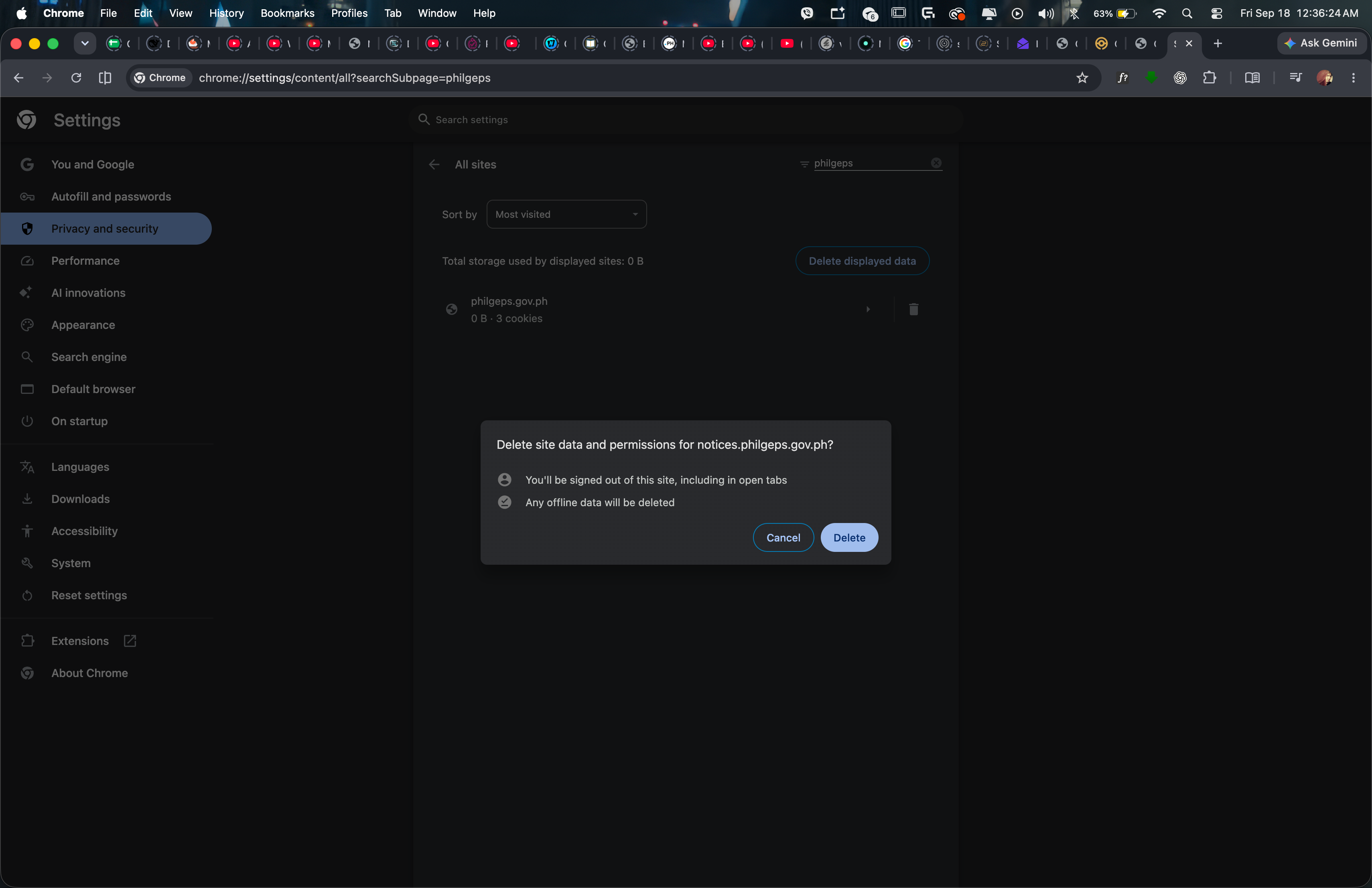
Confirm the deletion
Select “Delete.” Then open the PhilGEPS homepage once before retrying the notice.
Try the official notice again
Open PhilGEPS once to create a fresh session, then return to your workspace and retry the source link.